

How it Works
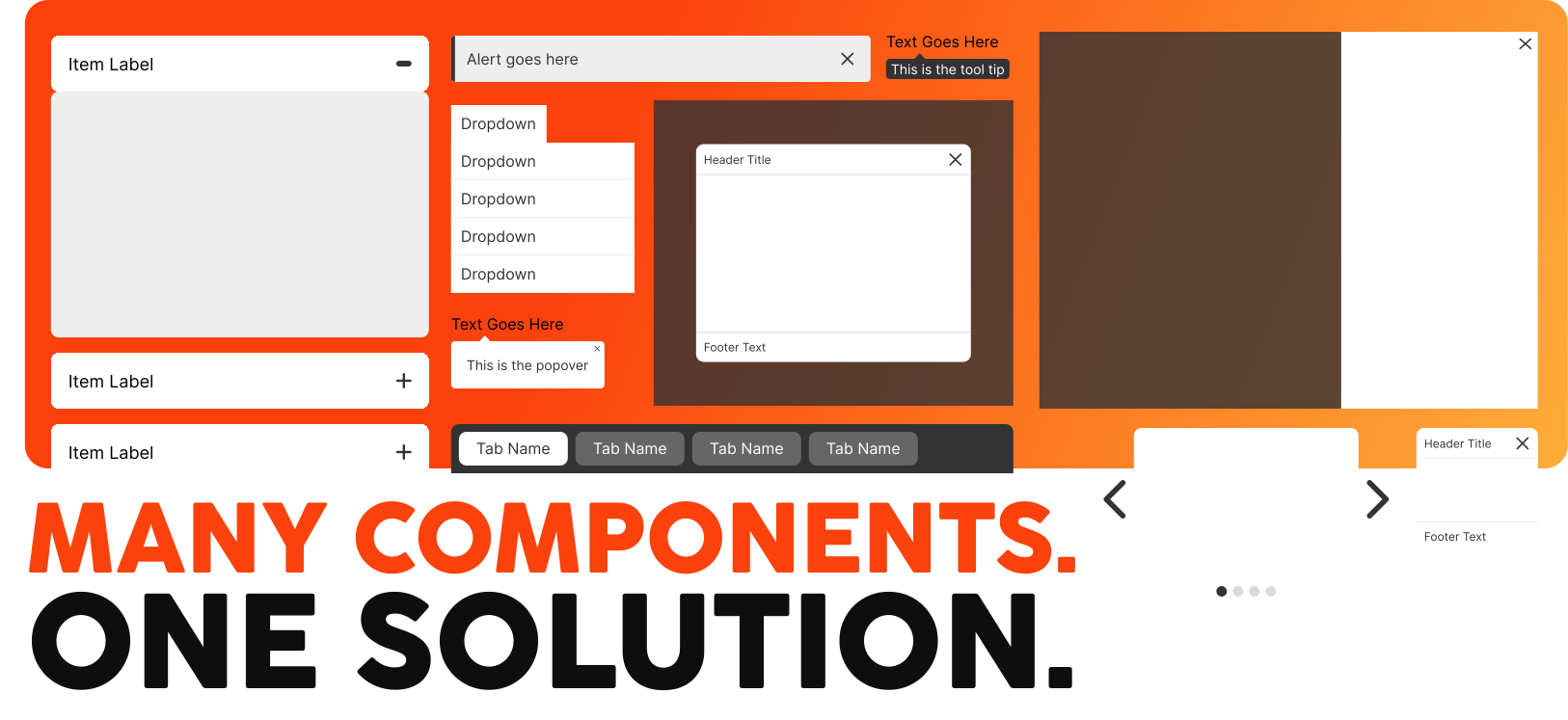
Many components share the common action of showing and hiding the infocus information. By creating a simple yet dynamic function, common and uncommon components can be built by using the same function and adjusting the CSS to get the desired functional outcome.
1
Download the script and the base css file to start.
2
Add a function call in your project with settings that support your component.
3
Customize your HTML and CSS to fit your project needs.
Make It Yours
Customize Components with Sass
Toglr utilizes Scss for a modular and customizable architecture.
Utilize Prebuilt Styles
Each components base css is named according to its matching component.
Include What you Need
Import only the styles you need. You can use the styles as is or add your own modifications.
Function Details
Below is the function call that will allow you to apply settings for your components.
$( control ).toglr( group, closeAll, addBody, direction, full, actionType, push );control
The basic structure of each item is identified with a specific class (.control) to trigger the matching items content to show.
group
The default state applies the group setting to the entire page but a group identifier can be applied by using the group setting to create multiples of the same component within a single page.
closeAll
This setting will set all items to closed except the active item. This can be set to true to always have a single item in the group open or set to false to allow multiple items to be set to active at the same time.
addBody
This setting adds an active class to the body in case the component being used needs to make adjustments to the body when active.
direction
This setting adds the direction provided to the body.
full
This setting adds a class name of ‘full’ to the body in the case that the component needs an additional setting to fill the screen.
actionType
This setting is used to adjust the action used to trigger the function. It works using jQuery syntax.
push
This setting adds a class name of ‘push’ to the body in the case that the component needs an additional setting to push the body when active.
Get Started With Toglr

<link href="/css/toglr.min.css" rel="stylesheet" crossorigin="anonymous">
<script src="/js/toglr.min.js" crossorigin="anonymous"></script>
<!doctype html>
<html lang="en">
<head>
<meta charset="utf-8">
<meta name="viewport" content="width=device-width, initial-scale=1">
<title>Bootstrap demo</title>
<link href="/css/toglr.min.css" rel="stylesheet" crossorigin="anonymous">
</head>
<body>
<a href=”#link” class=”control”>Link</a>
<div data-content=”link”>Content goes here</div>
<script src="/js/toglr.min.js" crossorigin="anonymous"></script>
</body>
</html>Accordions
text1
text2
Tabs
text1
text2
Trays
Slider
Dropdowns
Tooltip
Modal
Open ModalPopover
Edge Container
open1 open2Additional Controls
Expand, Collapse, Next and Previous are controls that can be used based on the type of component being created. The data-nav and data-control values need to match.
NEXT ITEM
PREVIOUS ITEM
EXPAND ALL ITEMS
COLLAPSE ALL ITEMS
Navigation Container:
data-nav="[group-control-name]"Group Container:
data-control="[group-control-name]"